Zoom is a video communication tool which works on various platforms and mobile devices.

Zoom is a video communication tool which works on various platforms and mobile devices.
To host and participate in zoom meetings, you will need:
Zoom is integrated into our Moodle system. Instructors will create a video conference meeting and publish it on Moodle and then students will be able to see the meeting link automatically generated by our system and will be able to join the meeting.
When you log in to moodle.boun.edu.tr, you will see the classes that you teach on the left menu. There is a video tutorial about how to add a Zoom meeting under Moodle 301 class which shows the below steps under Training Videos called "Adding a Live Zoom Session to your CoursePage".
When you log in to your moodle account on moodle.boun.edu.tr, you will see the classes that you take on the left menu. Select one of your classes.



This is common when you use your computer speakers. It is suggested to use headphones to stop these disturbing noises. Zoom has automatic tools to make your experience better but sometimes the viewer should move the speakers away from his/her microphone.
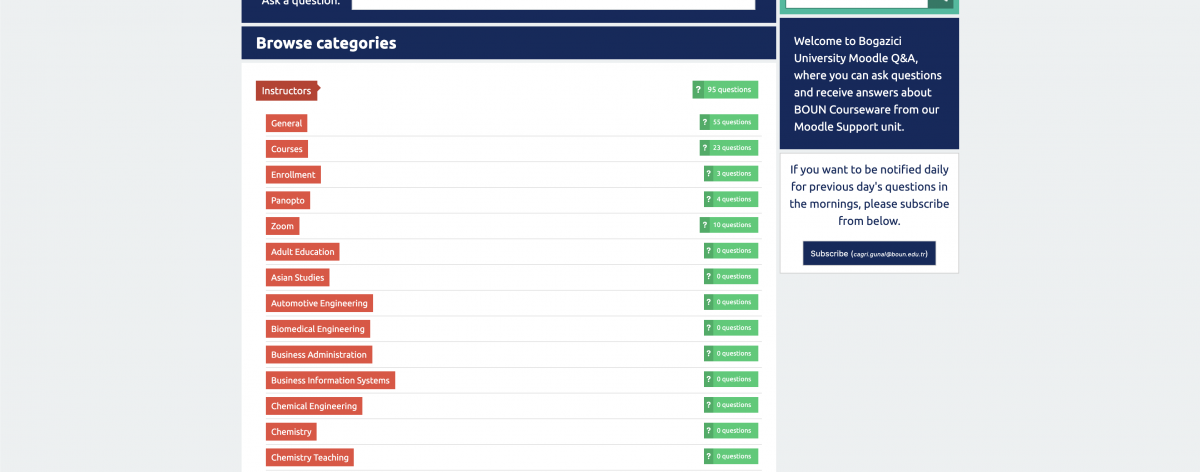

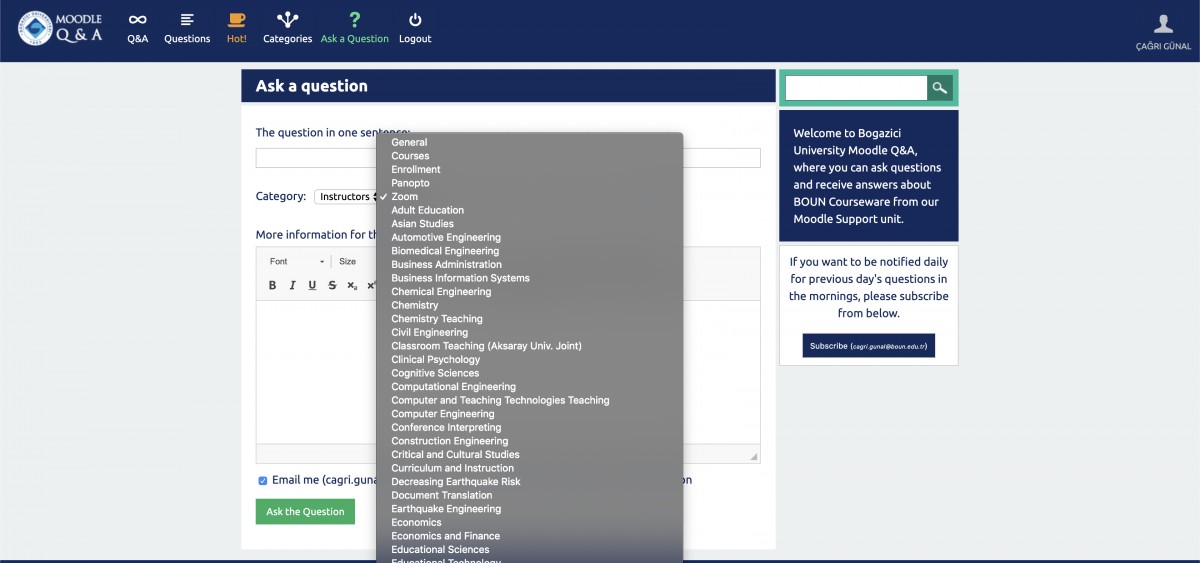
It is important to select a relevant category because it will notify the relevant support person to answer your question.



Dear Bogazici University Information Systems Users,
Due to the global Covid-19 pandemic, affecting the whole world, distance learning is initiated in our University to complete the academic semester. Due to the intensive usage of information systems during this period, we would like to provide you some information related to information security measures.
The usage of all Information Systems involves some security risks. Minimizing these mentioned risks depends on the measurements you will take. We would like to remind you precautions we have taken and the precautions which you will benefit – due to the news recently related to Zoom remote meeting systems’ which is also used in our University. (unauthorized attendance a.k.a. zoom bombing, disclosure of zoom account information)
1. USE THE LATEST VERSION OF ZOOM APPLICATION: To be able to apply the security measurements, please use the latest version. Please ensure that you are using the latest version by checking the instructions written on the following link : https://support.zoom.us/hc/en-us/articles/201362233-Where-Do-I-Download-The-Latest-Version-
2. USE AN UNIQUE PASSWORD AND DO NOT SHARE YOUR PASSWORD: Please use a password which you do not use within any other application, a unique password for Zoom application. Do not forget, usage of different password for each web application and system will reduce the risk of account theft. You can change your password from the following link.
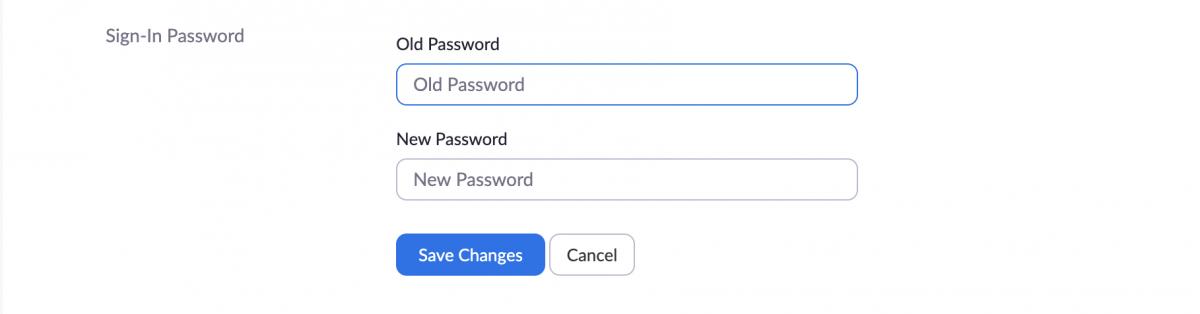
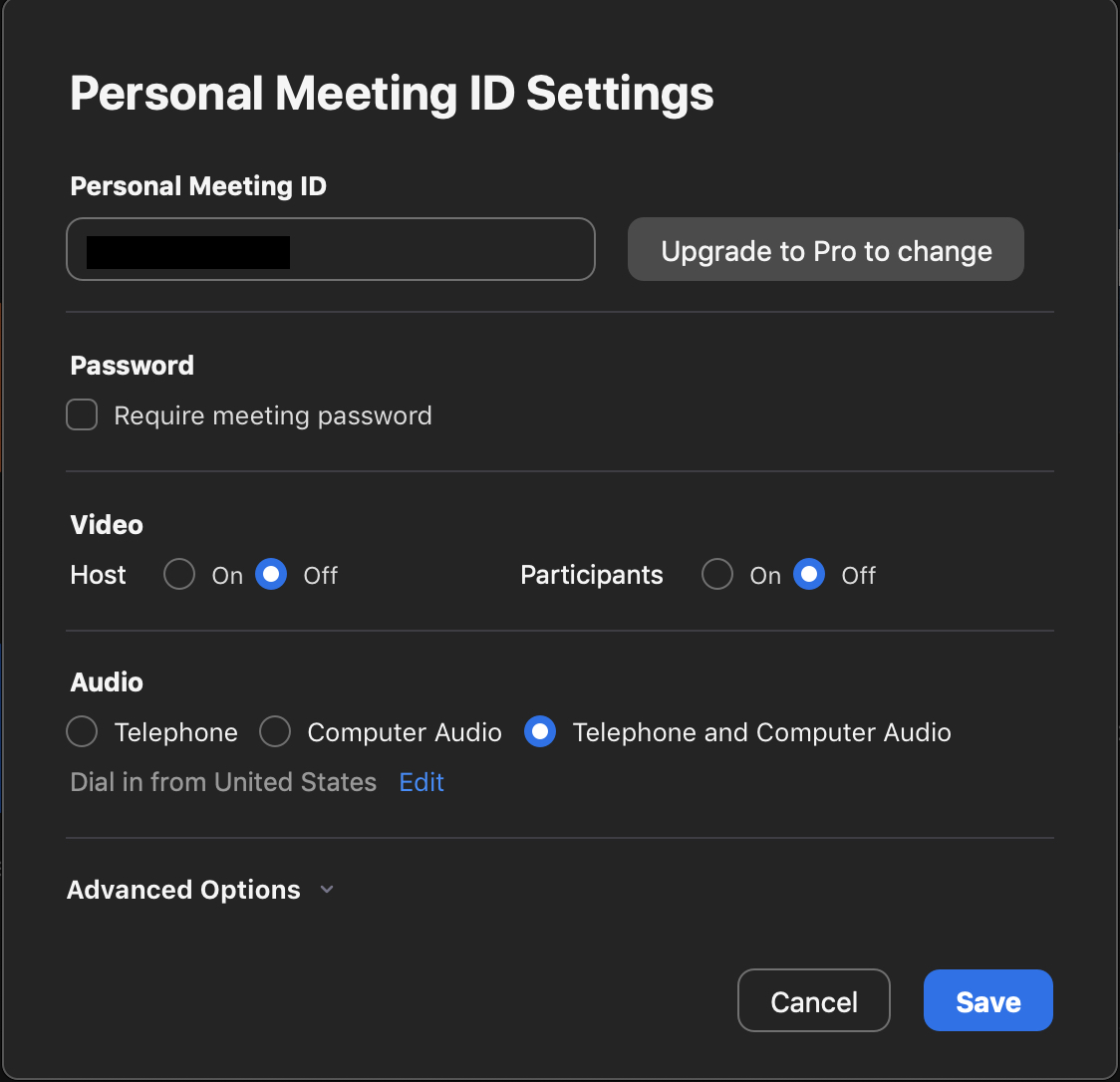
3. USE A PASSWORD FOR YOUR ZOOM MEETING: Providing a password to the Moodle Application during creation of a Zoom Meeting or creating a private Zoom Meeting with a password will reduce the risk of participation of unauthorized people to your session.
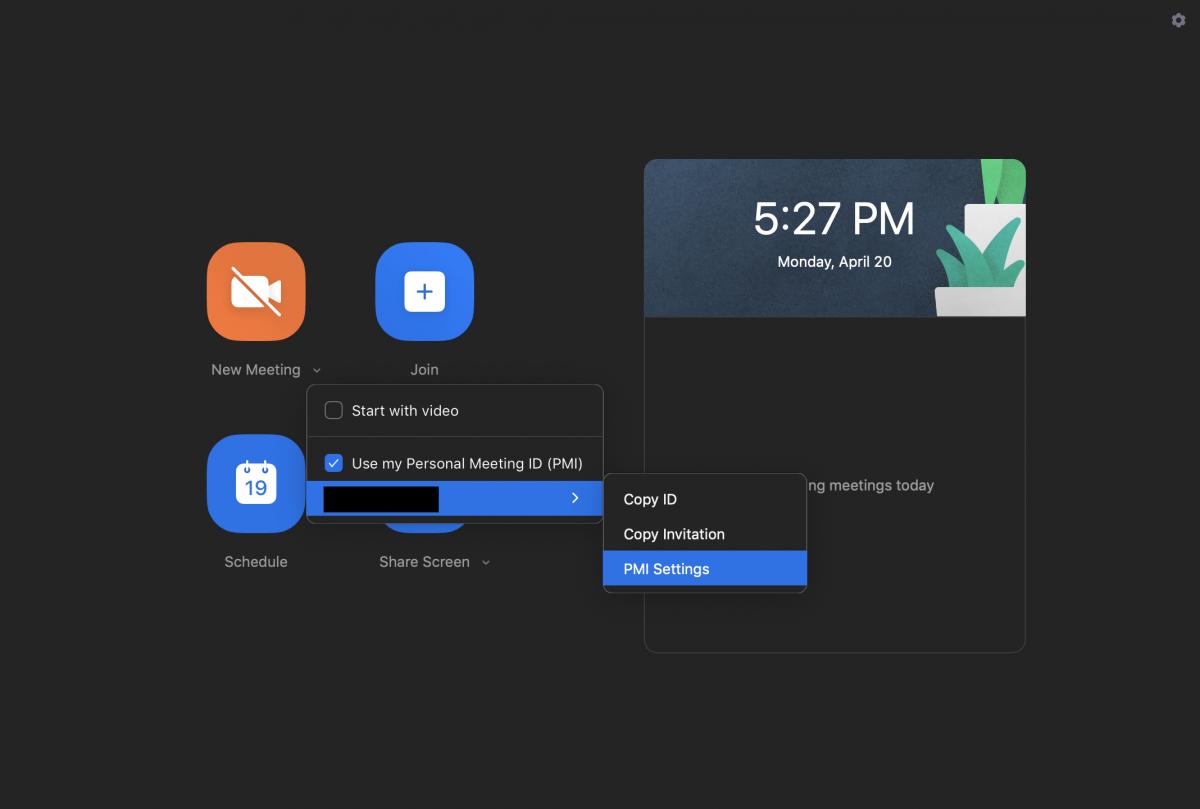
Under the settings of:
New Meeting > Personal Meeting ID > PMI
you can assign a password to your private meeting room. (See the figure above)
Besides:
From the following link , https://zoom.us/profile/setting you can set your zoom meting settings which is related to assigning a password for all your meetings. (See the figure below)

From the following link , https://zoom.us/profile/setting you can set your zoom meting settings which is related to assigning a password for all your meetings. (See the figure above)
4. SET A MEETING START TIME: Please, use the settings and activate the features for the participants can not join the meeting before start time and place your participants to a waiting room. By using this features you can control your participants. You can set these settings under the fallowing link: https://zoom.us/profile/setting
Or after the meeting has started you can activate these settings under the security tab.
(See figure below.)
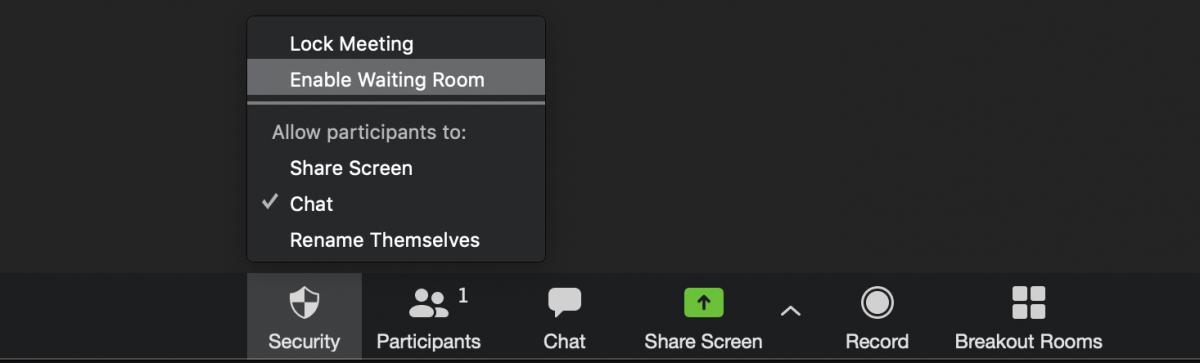
5. LOCK THE MEETING TO PREVENT ANYONE NEW FROM JOINING – AFTER ALL YOUR PARTICIPANTS ARE JOINED: After all your participants are joined, please lock your meeting to prevent anyone new from joining.
6. PREVENT PARTICIPANTS FROM SCREEN SHARING: Please activate the setting to prevent participants from screen sharing from security tab. These setting is already set as default for the Zoom meetings initiated from Moodle.
7. USE A RANDOM MEETING ID: Within Zoom Application, every user has been assigned a unique and static Meeting ID number. Please do not use this Meeting ID as much as possible unless required. For your meeting please create a new Zoom Meeting each time. By following this rule, Zoom application will assign random Meeting ID for your each new meetings.
8. PLACE PARTICIPANTS IN WAITING ROOM: Please use a waiting room. Approval of the meeting joins will provide an extra security measurement.
9. DO NOT USE FILE SHARING WITHIN ZOOM APPLICATION: Please use the Moodle for file sharing.
10. REMOVE THE PARTICIPANTS WHICH ACTS IMPROPER: You can remove the participants, which you are unfamiliar, suspicious or the ones act improper.
11. DO NOT CLICK ON THE LINKS SEEMS SUSPICIOUS SENT FROM CHAT DIALOG: Please note that suspicious links sent via chat dialog can redirect you to malicious software.
12. USE A CURRENT AND UPDATED ANTIVIRES SOFTWARE: Please use a current antivirus software all the time. Please ensure your antivirus software is active and updated.
1.Download CamScanner to your phone.

2. When you open the app, there should be a camera button on the bottom of the screen. Tap that.
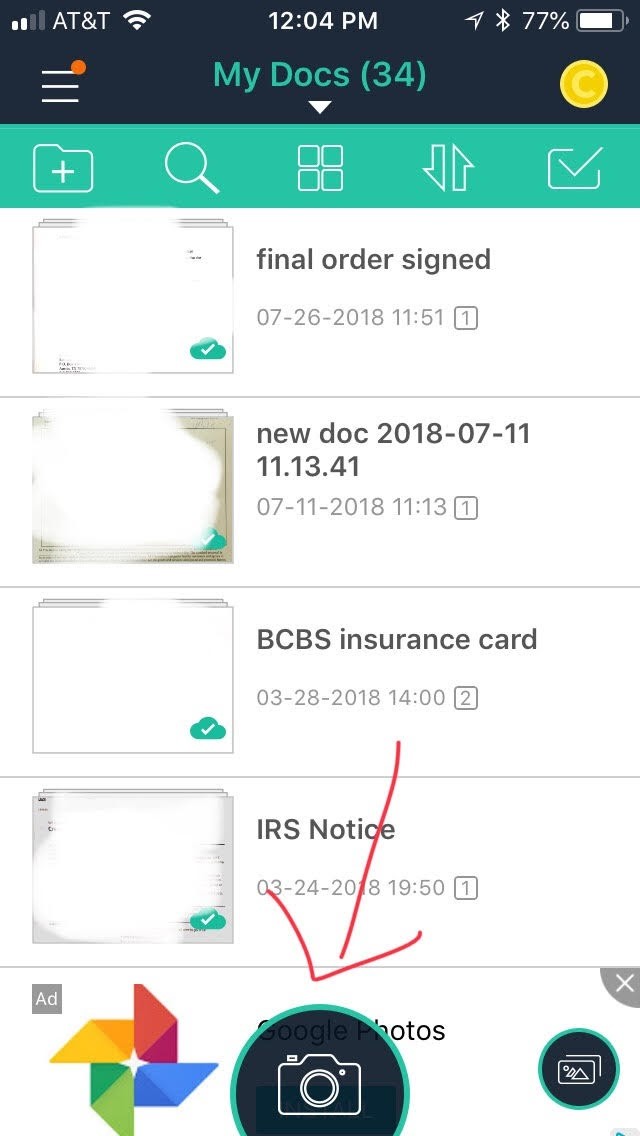
3. Right over the camera, there are some choices-- I'm showing you how to make a single page scan here so make sure that's the one selected in green. The "Batch" option will let you scan multiple pages into one file, which is helpful too. For our purposes, it's just as easy (probably easier) if you send multiple files, so if you don't want to experiment with Batch, that's ok-- leave it on single and just repeat this process as needed. Make sure you're in a decently lighted spot and snap a picture.
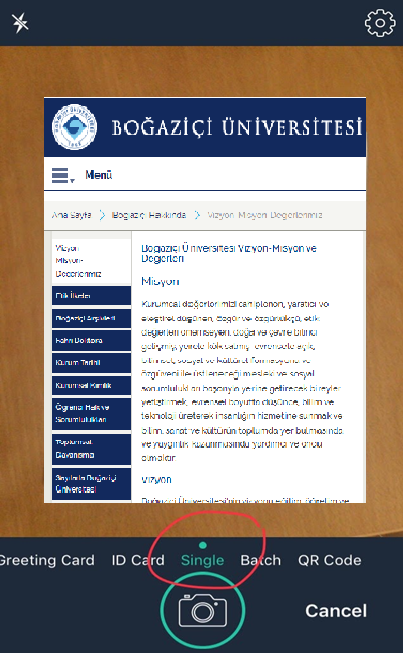
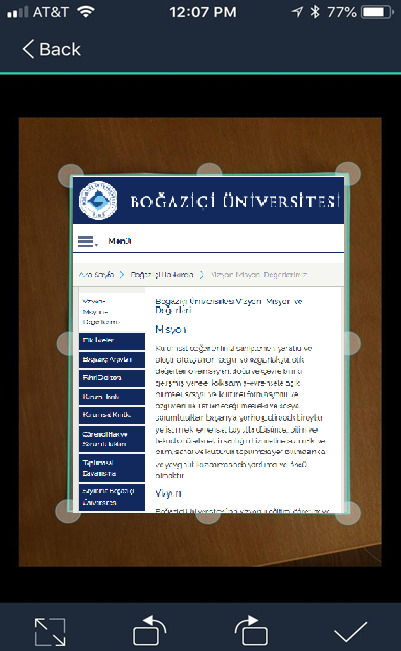
4. When you take the picture, CamScanner will automatically guess at where the edges of your document are. If it guessed right (as in this picture), cool-- leave it as is. If not, pull each of the circles to the corners or edges of your document. This is neat, because even if you took the pic at a little bit of an angle, the app will straighten it out for you. If your picture is just super wonky and you can't get the edges right, go back and take a new one-- sometimes that's easier. When the document is accurately outlined, tap the check mark in the bottom right corner.
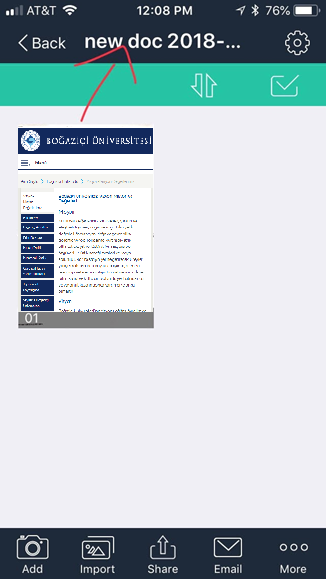
5. On this screen, you can rename your document by tapping on the "new doc..." title at the top.
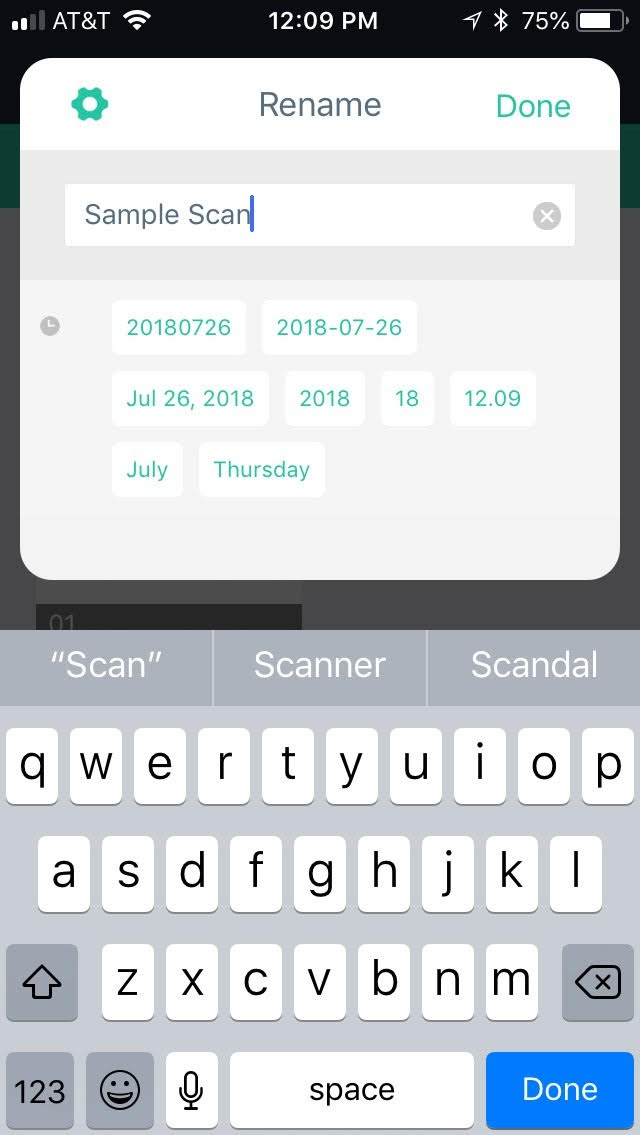
6. Then click Done.
7. Be sure to select PDF file.
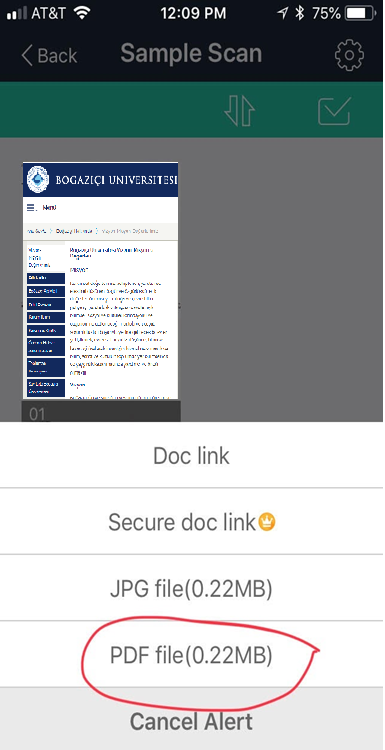
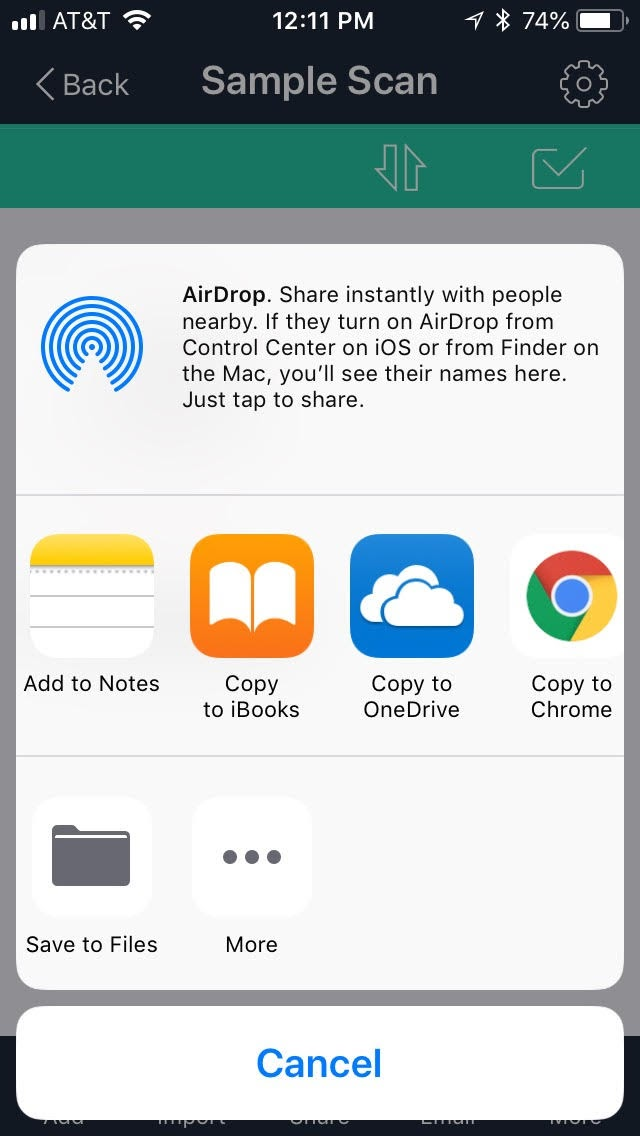
8. You'll have different options on this screen, depending on what systems you're using on your phone.
Save your pdf file.
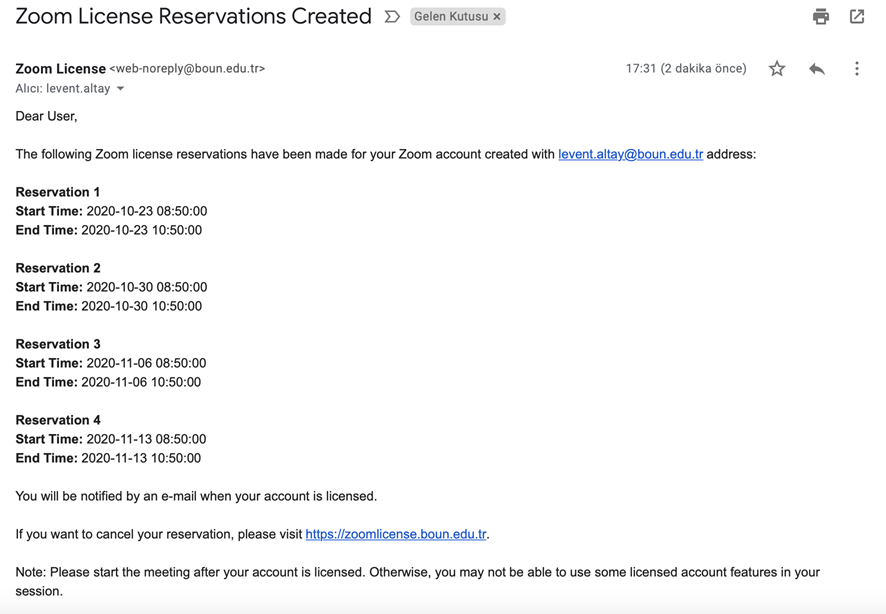
The Zoom reservation system has been developed by the BOUN Computer Center for daily and periodic licensed use of the Zoom rooms. When you make a reservation in the system, your e-mail account with boun.edu.tr extension will become licensed for the time intervals you specified.
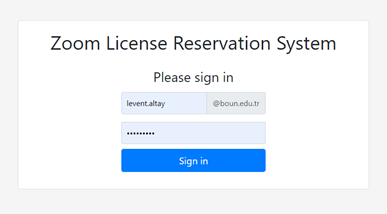
Please login on https://zoomlicense.boun.edu.tr/login
With your boun.edu.tr account and password. (Your email password)
After login,


Please send any questions you may have to moodle@boun.edu.tr